
eMathStudio
All activities in eMathStudio can be done using the menu commands. In addition, more frequently used activities can also be done by clicking on shortcut buttons. The menu commands show the icon of the corresponding shortcuts. This means that you can start by using the menus, but once you become more fluent, the shortcut buttons are often faster to work with.
View and Edit modes


eMathStudion can be in either View mode for reading the content and navigating in it, or in Edit mode for changing the content. You switch between the View mode and the Edit mode using the eye/pen icon on the top right of the page.
View mode menus
- Rooms
- Read Book
- Tools
Edit mode menus
- Rooms
- Read Book
- Edit book
- Edit page
- Insert element
- Tools
Room menu
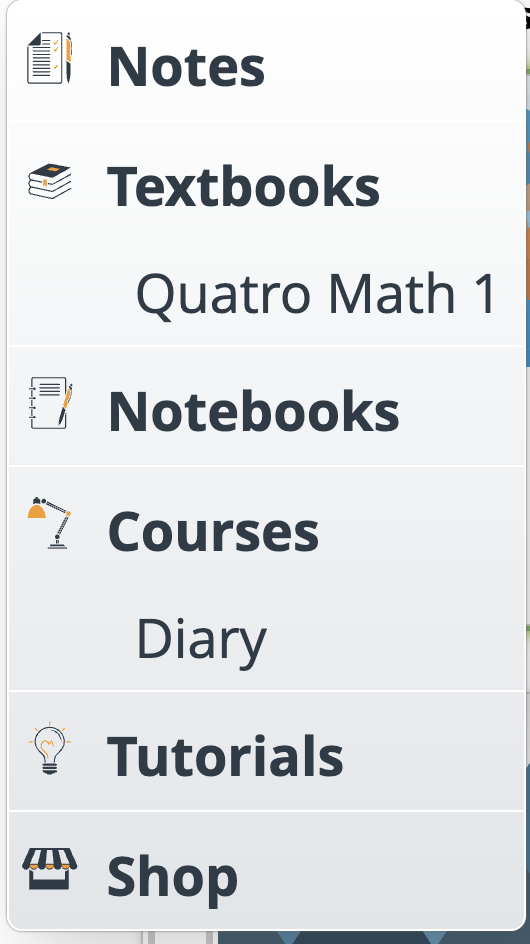
eMathStudio consists of a number of roms for the user to work in. The Rooms menu shows you the available rooms. Clicking on an room option takes you directly to this room. The Rooms menu shows the books that are already open in each room. Clicking on a book (rather that on the room name) takes you to the selected room and opens the book you selected, on the page where you last left it.
The rooms that are available for you depends on your subscription. You can, however, see all the rooms in eMathStudio by selecting Show all rooms in the Rooms menu. This allows you to try out other rooms with the demo books in these rooms. There are six different rooms in eMathStudio.
- Notes. Write quick note (observations, comment) on any topics. Share your notes with others, and respond to notes that others have shared with you. Notes are particularly useful for issues like solving mathematical problems or collecting your thoughts on something.
- Notebooks. Collect your notes into a notebook and organise them into a well structured presentation. Use different notebooks for different topics, or keep a separate day-by-day diary for each year. A notebook can also be used as a course book in an eMath course. You can share your notebook with other people when working on a common project.
- Textbooks. Read an interactive textbook, solve assignments in the book and check the correctness of your solutions. This works particularly well for self-studies in Mathematic, Physics, and other STEM subjects. The textbooks in this room can be used as course books in an eMath Course.
- Courses (for students) A student can participate in a course, read the course book and solve assignments in the course book. The student can check the correctness of a solution using the automatic checker and get an overview of own progress in the course. The student can submit solutions to home assignments to the course teacher, and get personal feedback on his/her solution from the teacher.
- Courses (for teachers). A teacher can create his/her own coursebook for a course from scratch, or use th existing material in eMathStudio as the basis for a course book. The existing material could be a notebook in Notebooks , a textbook in Textbooks, or a previous course in Courses. The course book can also be built from scratch in the Course room. The teacher can adapt the course book material freely: add own material, delete existing material, reorder the material, and edit existing material. The teacher can follow the progress of students in real time, when they solve their assignments. The teacher can give direct and personal feedback to a student that needs help in solving an assignment. The course also has an online classroom where the teacher can give lectures, and where the class can discuss issues that arise during the course.
- Tutorials This room has tutorials on how to use eMathStudio in practice. The tutorials cover different issues, like how to use the eMath editor for writing structured derivations, how to check derivations, how to solve assignments, and how to follow your own progress in a course. For teachers there are tutorials on how to create a course in eMathStudio, how to follow the progress of students in a course, how to give personal feedback to students, how to create homework sets, and how to carry out exams (online or in class).
- Shop. The webshop shows the resources that are available for an eMathStudio user. The user can choose to buy textbooks on some specific topic, buy subscription time for eMathStudio, buy more checking quota, or pay for participating in a a course that is available in the shop.
Books
Each room has a collection of books (textbooks, notebooks, course books, or tutorials). There are basically two different ways you can work with a book: you can just read a book, or you can write a book and edit the the content of the book . You can always read a book, but editing a book usually requires a subscription.
- The Notes room contains two note collections (actually books), your Own notes, and Shared notes. You can create and edit pages (notes) in you Own notes, but you can only read the pages (notes) in Shared notes. You can, however, save a shared note as your own note, then edit that note (e.g., to prepare an answer to the shared note), and then share the edited note in a discussion.
- A notebook is used to build and organise a collection of nottes. A user scan create any number of notebooks in the Notebooks room and edit these freely.
- Textbooks in the Textbook room can only be read, but you can solve assignments given in a textbook with the Solver tool. Solving an assignment is similar to writing a note in the Notes room.
- Students can only read course books in the Course room. However, they can solve assignments in the course book, in a similar way as solving assignments in a textbook.
- A teacher can also edit the course book of his/her own course in the Course room. You can find out your role, student or teacher, from the Profile option in the User menu. The default role is student.
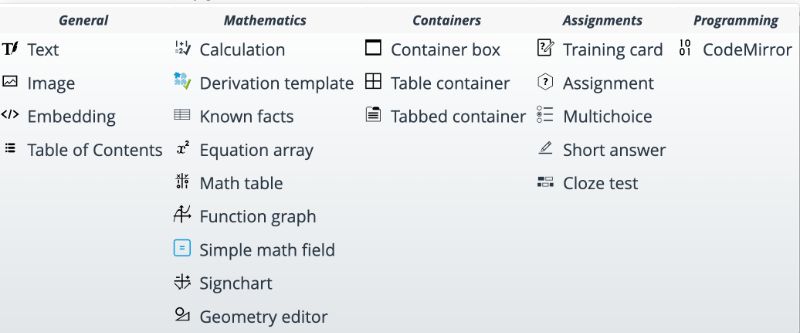
There are four menus for working with books. The Read book menu is available for everybody and can be used to navigate in the book, copy content of the book, and share content with other. The operations here do not change the content of the book. The Edit book menu is for editing the structure of the book, like adding, removing or editing chapters, sections and pages in the book, and for editing the content of individual pages of the book. The Edit page menu allows you to edit an individual page in a book. Finally, the Insert element menu shows you all the different kinds of elements that you can insert on a page.
You are free to edit your own notebooks using the edit menus. Page editing is allowed for notes and for writing up a solution in the Solution tool. A teacher has also the right to freely edit the course book.
Read book menu
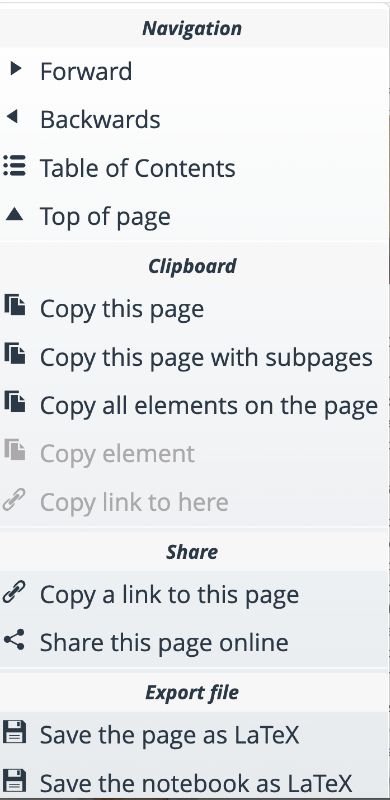
This menu is available for everybody and can be used to navigate in the book, see a list of content, copy content of the book to insert in another eMath book, and share content of a book with other. These operations do not change the content of the book.
You can make a link to a page in the book, or even to a specific page element on the page. It is also possible to share the whole page online.
Finally, you can save your notebook page in LaTeX format for publication. You can even save your whole notebook in LaText, if you need to.
Edit book menu
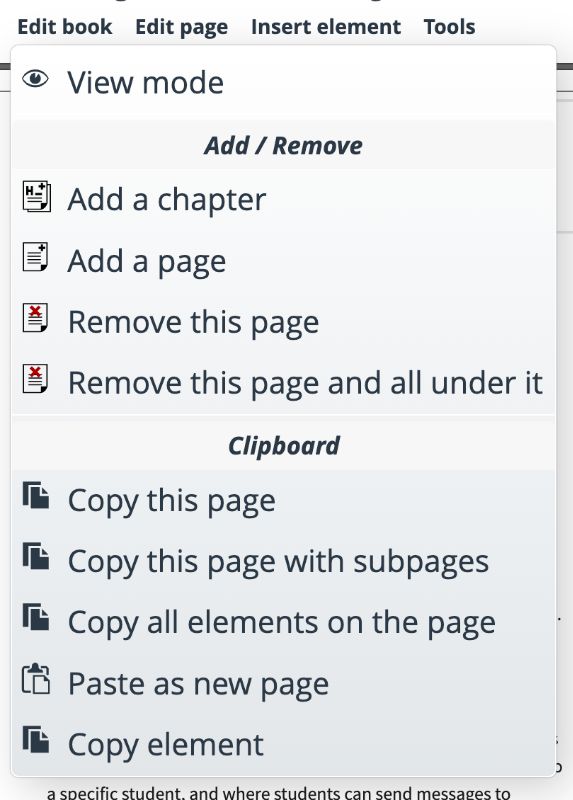
This menu allows you to change the structure of the book: add new chapters, sections or pages to the book, or delete chapter, sections or pages. You can also reorder the pages in the book, as well as copy parts from one book into another book.
Edit page menu
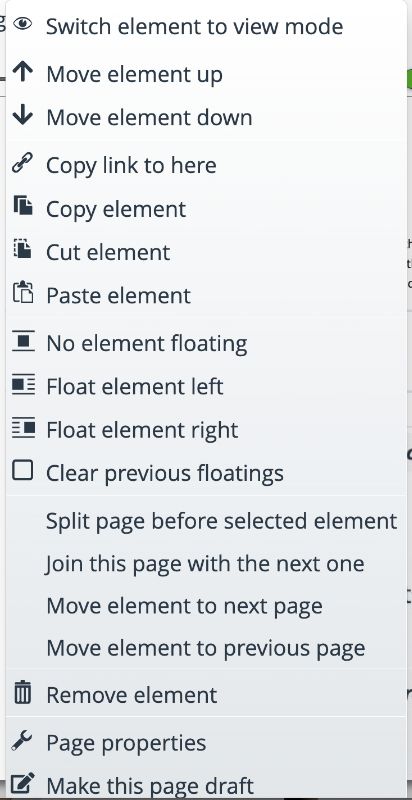
You can add text, images, embedded videro, structured derivations, function graphs, geometric figures, etc to the page. You can change the layout of a page, and reorder the different kinds of elements on the page.
A book page consists of a sequence of page elements, layd out i different ways. This menu allows you to edit an individual page. You can move a page element up or down on the page, copy a link to a page elementYou can copy and paste page elements on the same page or between different pages. You can add elements that float in the text. You can also split a page into two pages, or join two successive pages intoa single page.
Insert element menu
This menu lists all the different kinds of page elements that you can add to a page, as well as differnt ways of laying out the elements on the page.
Tools menu
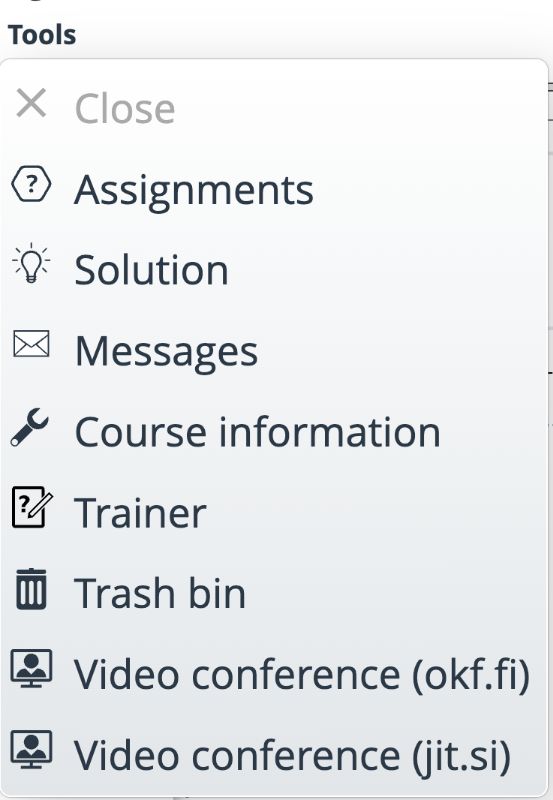
 In addition to books, a room also has a number of tools that can be used when working with a book. The tools are accessible from the Tools menu. The main tools are:
- Solver tool. This creates a special environment for solving an assignment in the textbook or the course book. You create a solution to an assignment in the Solution tool, and check the correctness of your solution. You can submit your solution to the teacher in a course, and receive personal feedback on the solution from the teacher. You can save a solution for later reference and start a new solution.
- Progress tool. This tool shows all assignments in the course book or textbook, and shows your progress in solving these assignments. You see which assignments you have already solved, and whether your solution is correct. Clicking on a specific assignment in the Progress table opens the assignment for editing.
- Message tool. The message tool is available in a course. It provides a chatroom where teachers can send messages to all students, or to a specific student, and where students can send messages to teachers.
- Video conference. You can participate in a class video chat using this tool. The video conference has all the traditional features that are useful in teaching, like sharing the screen or a window, a chatroom, and a whiteboard.
- Trash tool. Users who are allowed to edit a book also have access to the trash tool. This tool saves all pages and elements that have been removed during editing of the book. This allows users to reuse or take back material that has been deleted during editing, either by mistake or on purpose.
- Info tool. You can set your preferences for books in a particular room in the info tool (Book info, Notebook info, Course info, …). You can e.g. set the font size used in the book, or use a font that is easier for dyslexic persons to read, and also choose the general layout theme of the book. In addition, the Course info tool allows a teacher to administer the participants in the course, both students, teachers and supporting teachers.
User info menu
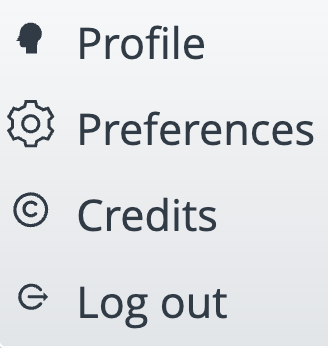
- The User menu is shown as a green circle with your initials on top right of you page.
- Profile allows you to see what kind of information that the system has about you and you can update the information as needed. It shows your user name, email address, your roles, what schools you are enrolled in, how much subscription time you have left, and how many checks you still have available.
- Preferences allows you to set your global preferences. These include your language (presently only English,Finnish, and Swedish), you menu preference, and your choice of decimal separator (period or comma)
- Credits lists the credits for the open source software that have been used to build the eMathStudio software.
- Log out logs you out from the eMathStudio web application.
Note that eMathStudio is not using any resources when you are not actively using it, even if you are logged in. So you can remain logged in even when you are using other applications. In this case, remember to click the Keep me logged in box when you log in to the system. Occasionally, it can be good to refresh the eMathStudio web application, in particular after a system update or when some errors occur. The refresh is usually achieved by keeping Shift-Control pressed and pressing the r key (Shif-Command + r on a Mac). The system will then reboot without you having to log in anew.